Every phone
is a microphone.
CloudMic Live uses the smartphones already in the room as microphones and lets the host manage speech requests, permissions and mute from a PC. No passing a mic around, no extra hardware.
Released 2026-11-16 · Free to start · Participants are always free · No account
The browser version (cloudmiclive.com) is free for 5 people for 30 minutes, and attendees can join over mobile data (privacy policy).
Participants: nothing to install. Scan the QR code on the host's screen with your phone and it opens in your browser.
Run the room
without passing a mic.
Spot the raised hand, carry the mic over, get it back. CloudMic Live removes that loop by bringing every request to the host's screen.
Phones become microphones
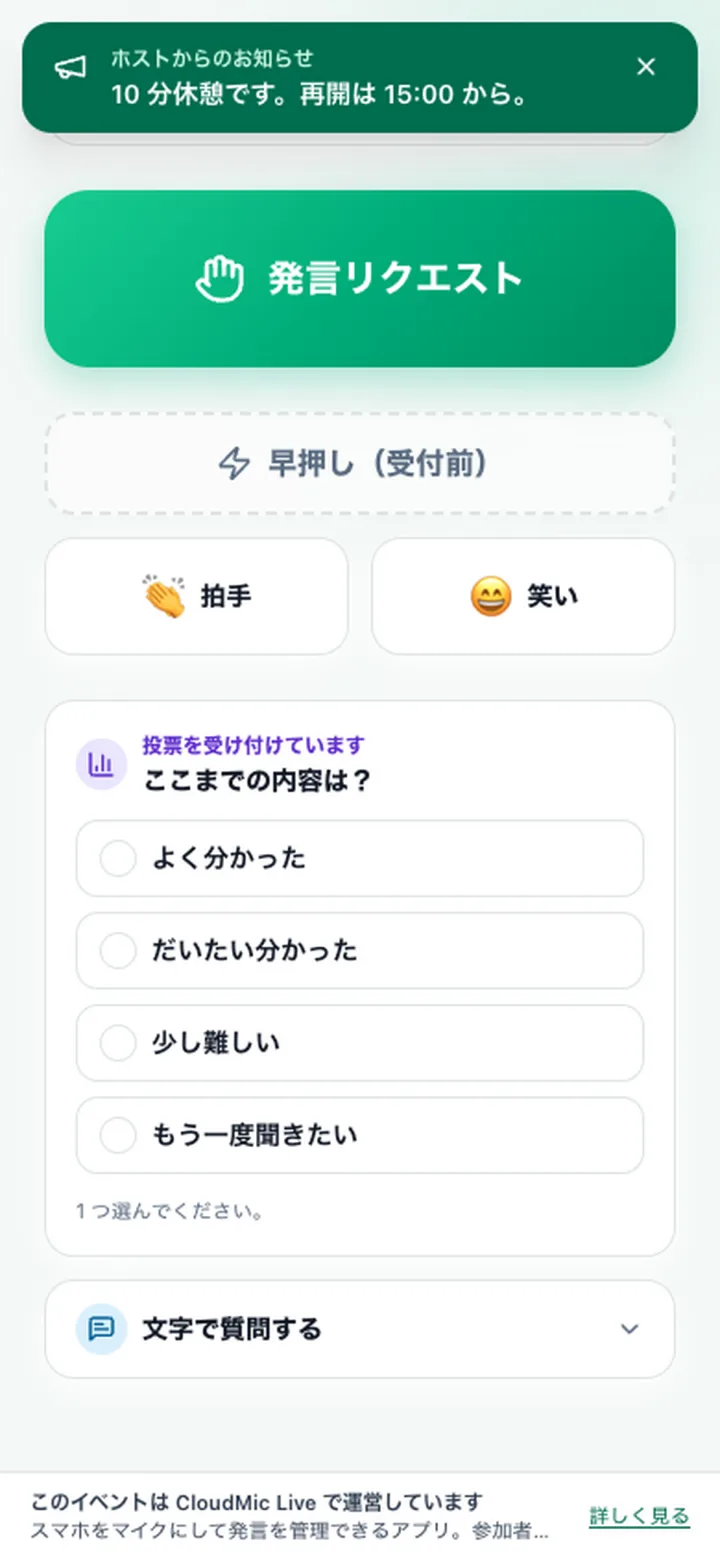
Participants scan a QR code and open a web page. While they are speaking, their voice plays from the host's PC.
Three speaking modes
Request & approve, free push-to-talk, or host nomination. Switch to fit the moment.
The host stays in control
Per-person mute, global mute, lock, remove and ban. You can also invite someone to speak, right from the PC.
Buzzer and reactions
The buzzer records who pressed first, automatically. Applause and laughter reactions add up on the host's screen.
Random pick
Pick one participant at random. For calling on students or drawing a name at an event.
Entirely on the local Wi‑Fi
No internet needed. Audio is played live and never sent to the developer or any outside server. An event passcode and join lock keep the room to the people you invited.
Polls and a question box
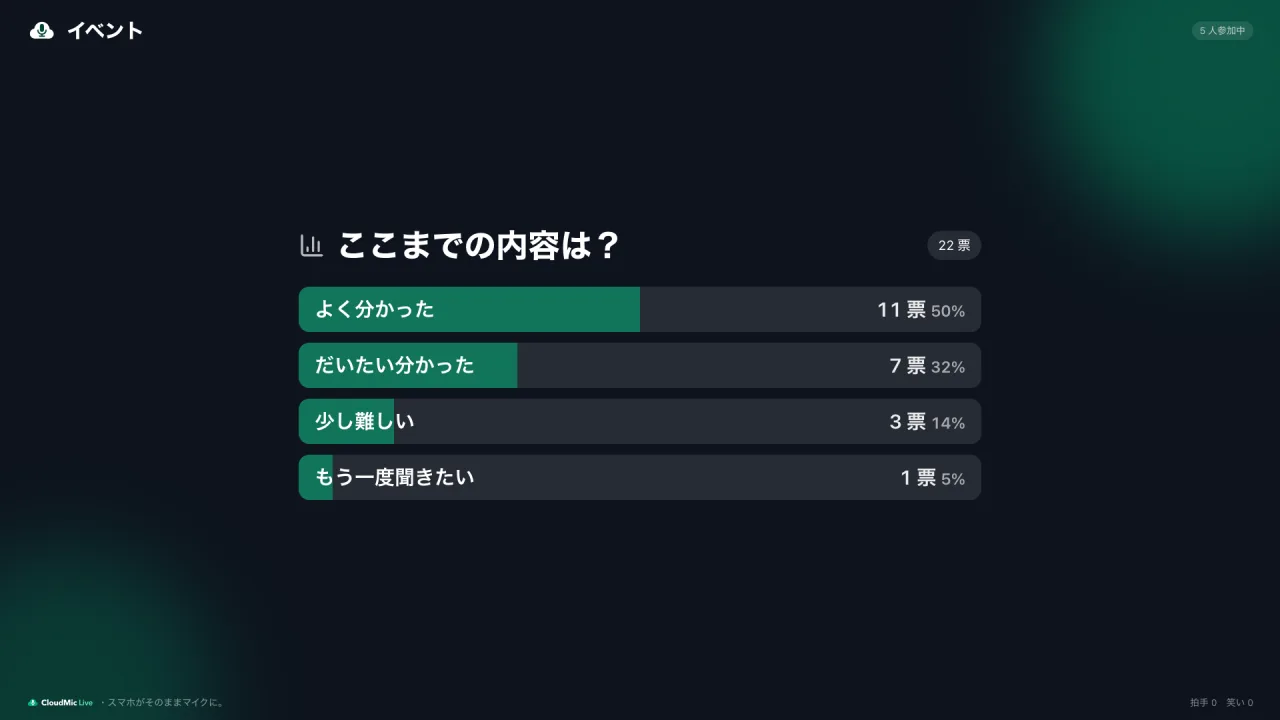
Ask a question with options and let people answer on their phones. Shy participants can ask in writing; the most liked questions rise to the top.
Projector screen and speaking timer
A separate screen view shows the current speaker, time remaining, poll results, buzzer ranking and the join QR code, large enough for the room.
Announcements, roll call and audio care
Send a break notice to every phone. Roll call is one tap. Level meters show each voice, and the app warns about possible feedback.
Word cloud and private notes
Collect short words on a prompt and show the popular ones larger on the screen. Participants can also send the host a private note such as "The sound is too quiet".
Visible turns, fair picks
People waiting to speak see "You are number 3 in line". Random pick can favor those who have not spoken yet. Applause and cue sounds play through the room speakers.
Roster, poster and venue check
Match attendance against a CSV roster. Print a QR poster for the door. Before the event, measure in 10 seconds how many people this PC and Wi-Fi can handle. English and Japanese interface.
Three steps to get started.
Create an event on your PC
Launch the app on Windows and create an event. Make sure the PC is on the same Wi‑Fi as your participants.
Participants scan the QR code
Show the QR code on screen. Participants scan it with their phone — no install, it opens in the browser.
Approve, and they're on
A participant taps "Request to speak". When the host allows it, their voice plays from the PC.
How-to video (about 1.5 minutes). Playing it loads YouTube.
Made for rooms like these.
Anywhere people gather and there is Wi‑Fi.
Internal talks and briefings
No more hunting for the mic during Q&A.
Classes and assemblies
Nomination and random pick, from any seat.
Talk sessions
Buzzer and reactions get the whole room involved.
Floor questions
Request mode keeps it orderly: only approved people speak.
Local meetups
One PC and the venue's Wi‑Fi is all it takes.
Teams or Zoom plus a live room
Send the room's voices to both the venue speakers and the online meeting.
Use cases: Classrooms · Town halls & community meetings · Training & seminars · Quiz nights & parties
Guides, by problem.
Common problems and how to solve them, step by step.
The host on a PC,
participants on their phones.
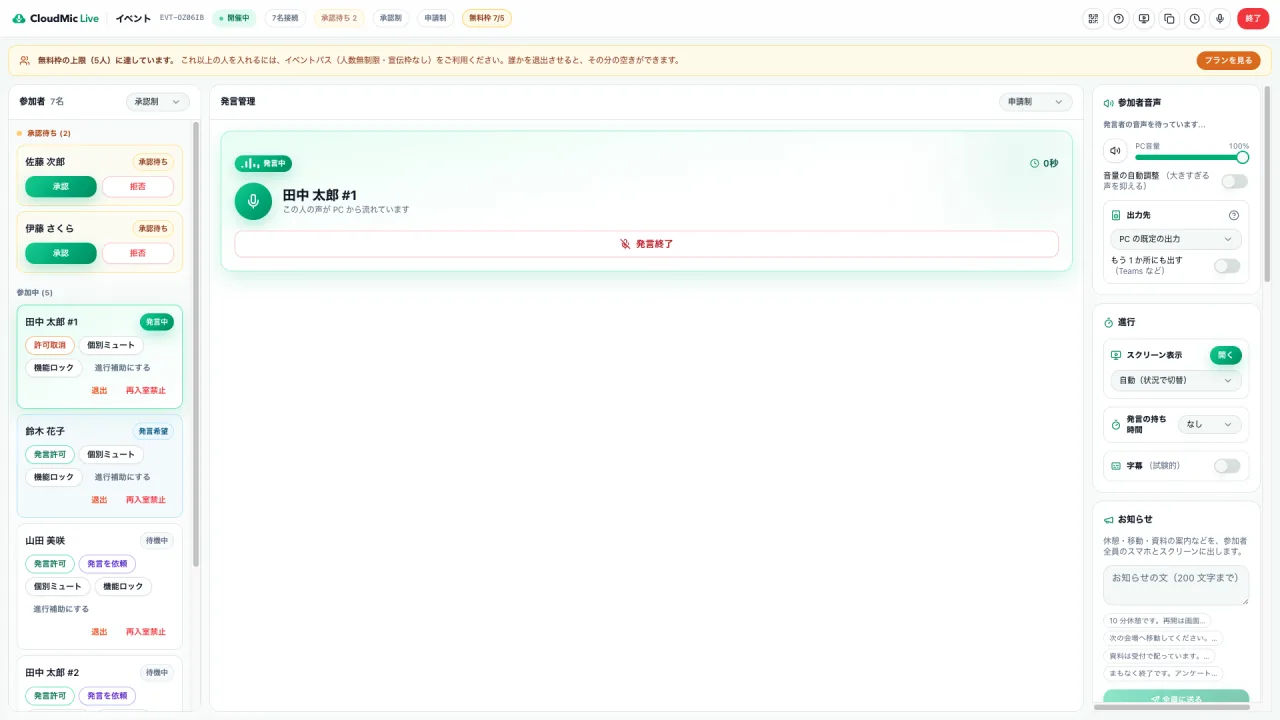
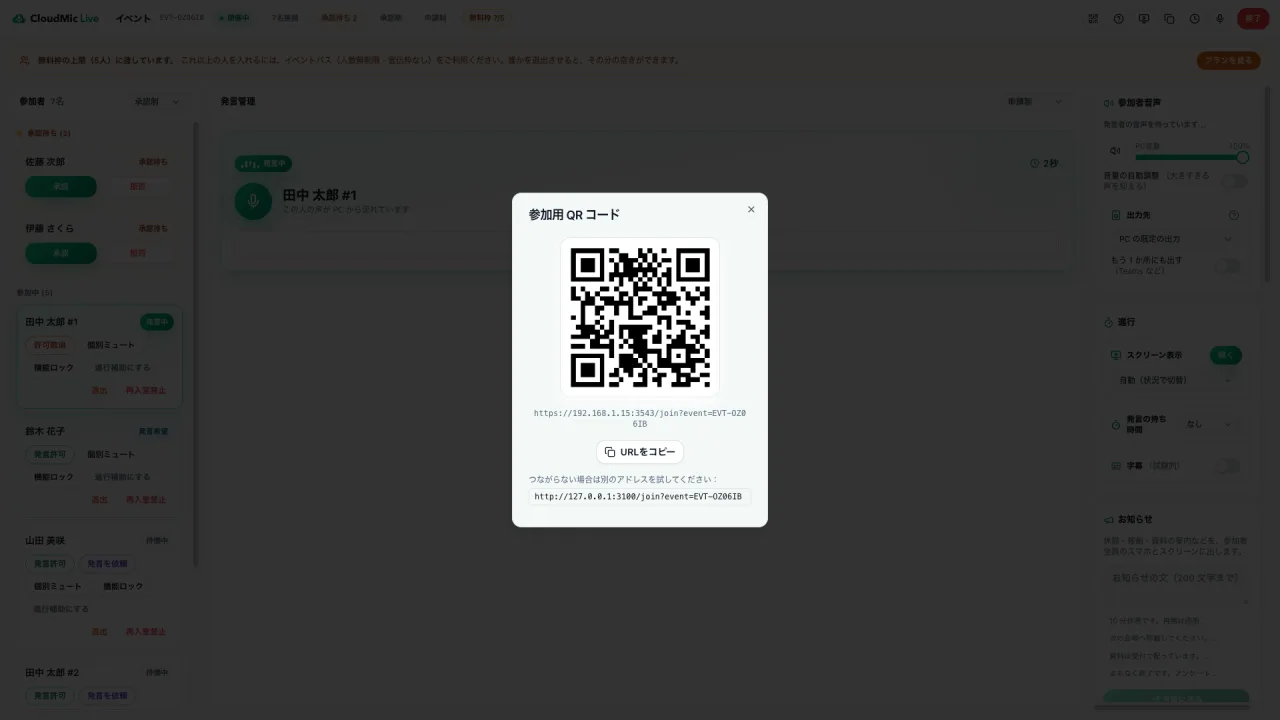
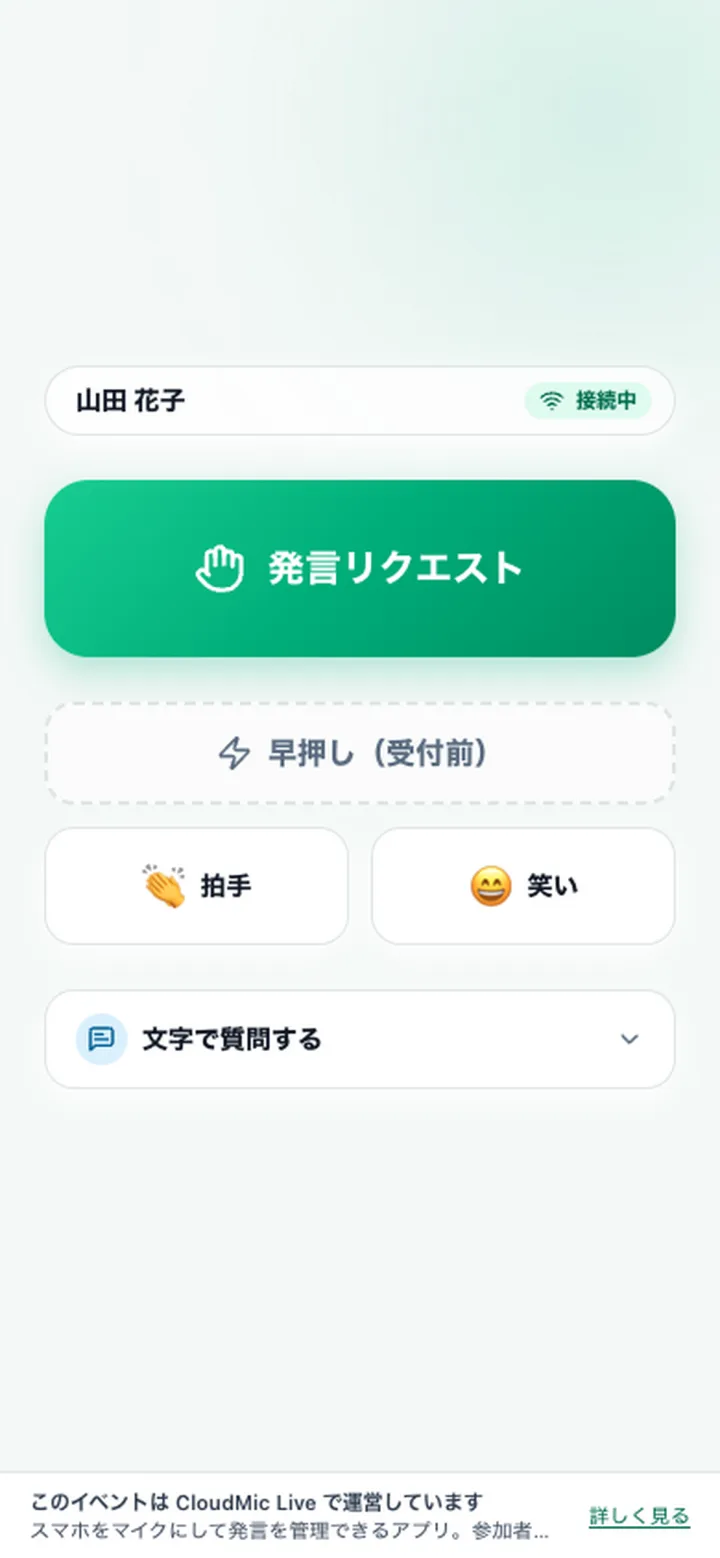
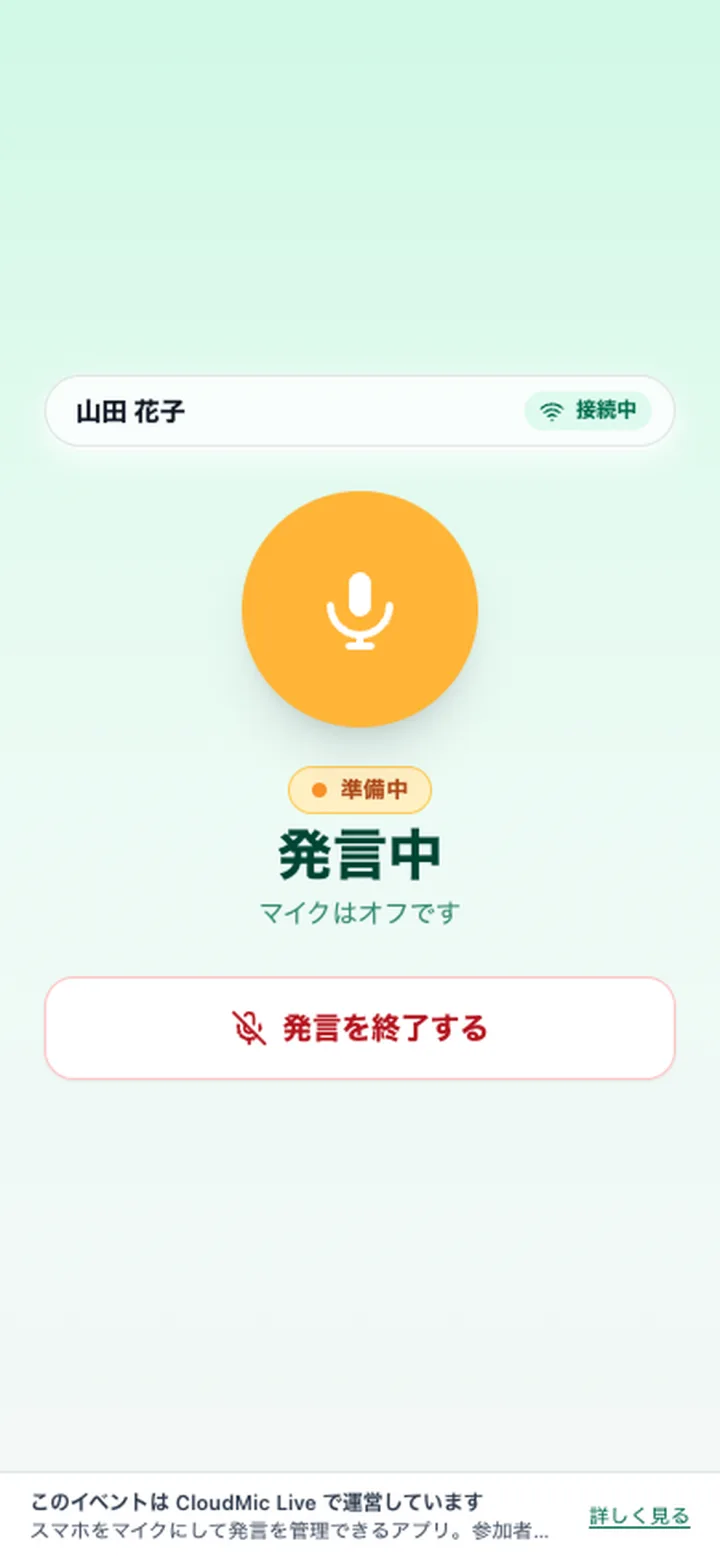
Participants are always free.
Hosts pay only for what they use.
The host app is free to download. For rooms with more than 5 people, pick a one-day pass or a subscription.
The browser version (cloudmiclive.com) is free to try. To use paid features today, use the Windows app.
Free
Up to 5 participants
- All core features
- A small notice appears on participant screens
- No time limit, no account
Event Pass
Unlimited participants for 24 hours from purchase
- No participant limit
- No notice on participant screens
- Buy it on the day, use it that day
Monthly / Yearly
or US$69.99 / year (save over 40%)
- Unlimited participants, no notice
- For frequent hosts
- Recording, speech-log and attendance export, automatic event reports
Participants are free on every plan, with no app and no account.Prices in US dollars; Microsoft Store shows the equivalent in your region's currency, tax included where applicable. Purchases are handled by Microsoft Store in-app purchase; the developer never receives your payment details.
Teams and organizations (several PCs, invoicing): get in touch.We will suggest a plan that fits your setup. 845labsupport@gmail.com
Other ways to get the room's voice heard.
From passing a mic to dedicated hardware, here is how the approaches line up — including what CloudMic Live is not built for.
| Passing a mic / rental |
Dedicated receiver + participant app |
Cloud-based phone-mic services |
Text Q&A tools |
CloudMic Live | CloudMic Live browser version |
|
|---|---|---|---|---|---|---|
| Participant setup | None | Install an app | Mostly browser (some need an iPhone app) | Browser | Browser — just scan a QR code | Browser — just scan a QR code |
| Internet | Not needed | Required (receiver is wired) | Required (stops when it drops) | Required | Not needed — venue Wi‑Fi only | Required. Join from any network (voice goes direct, or through Cloudflare's relay when needed) |
| Hardware | Mics, receiver, speakers | Dedicated receiver, pro-grade Wi‑Fi | A PC | A PC | One Windows PC (plus the venue speakers) | Nothing to install — a browser on a PC or phone (plus the venue speakers) |
| Speak by voice | Yes | Yes (one at a time) | Yes | No — text only | Yes | Yes |
| Host controls | A person carries the mic | Approve, mute, polls | Approve, queue | Question moderation, polls (moderation often paid) | Approve, mute, time limits, nomination, polls, question box, reports | Same as the app |
| Typical cost | Rental mic about US$10–22 per day each | Receiver alone about US$2,650–4,290 (e.g. Biamp Crowd Mics ATOM, street price), quoted per project | Monthly or 30-day plans | Often from about US$200 per event or US$900 per year | Free up to 5 people, then from US$4.99 a day | Free to try: 5 people, 30 minutes |
| Not a fit for | Big crowds, lots of questions | Small rooms, tight budgets | Venues with weak internet, confidential talks | Rooms that want to talk out loud | 1,000-seat halls, HDMI output to venue displays, remote attendees | Venues with weak internet, sessions over 30 minutes (trial only for now) |
Costs are indicative, checked against public information in November 2026; they vary by product terms and exchange rates. Street prices quoted from resellers.
Head-to-head comparisons: CloudMic Live vs Biamp Crowd Mics · vs Catchbox · vs Slido
Voices stay in the room.
Audio and event data travel only between the host's PC and the participants' devices on the local network. Nothing is sent to the developer or to third-party services. Audio is normally played live and not stored; with a paid plan's recording feature it is saved only on the host's PC. The app contains no analytics or advertising SDKs.
Read the privacy policyQuestions
Does everyone need to be on the same Wi‑Fi?
Yes. The host PC and the participants' phones must be on the same Wi‑Fi (or the same LAN). The app has no way to join remotely over the internet — which also means no voice or event data ever passes through an outside server.
If there is no shared Wi‑Fi, the browser version (cloudmiclive.com) lets attendees join over mobile data (free for 5 people, 30 minutes; messages pass through Cloudflare's relay).
If the venue's Wi‑Fi blocks devices from talking to each other, you can connect phones to the PC's Mobile hotspot instead.
A security warning appears on the phone the first time it connects
Because CloudMic Live uses the microphone, the host PC serves the page over HTTPS with a certificate it generates itself. That certificate is not issued by a public authority, so the browser warns once on first access. The connection never leaves your local network, so it is safe to proceed.
Android (Chrome)
- On "Your connection is not private", tap Advanced
- Tap Proceed to (address) (unsafe)
iPhone (Safari)
- On "This Connection Is Not Private", tap Show Details
- Tap visit this website, then Visit Website to confirm
If it still won't connect, the "?" button on the host screen explains how to use an alternative address.
Can I run a Teams or Zoom meeting and a live room at the same time?
Yes. In the host app, "Output" lets you play the room's voices on the venue speakers and send them to the meeting app at the same time. The meeting app receives the audio through a free virtual audio cable (BlackHole on Mac, VB-CABLE on Windows): select that cable as the microphone in Teams or Zoom. The steps are shown from the "?" next to "Output" in the app.
With the app, remote attendees cannot speak through their phones; only people on the same Wi‑Fi can join. With the browser version (cloudmiclive.com), people elsewhere can join from their phone's browser.
Is audio recorded?
Normally, no. Only when a host on the monthly or yearly plan uses the recording feature is audio saved, as a file on the host's own PC. While recording, every participant's screen shows a "Recording" indicator. Audio is never sent to the developer or any server.
The microphone is used only between "Start speaking" and "Stop speaking".
Do participants need to install an app?
No. They open the host's QR code in Safari (iPhone) or Chrome (Android). No account is needed, and participants are always free.
How is this different from Slido, Mentimeter, Teams or Zoom?
Text Q&A tools collect written questions for the host to read out; participants never speak. With CloudMic Live, a participant's phone becomes the microphone, so people talk from their seats — and polls and a question box are included.
Teams and Zoom deliberately mute extra microphones in the same room to prevent howling, so they are not designed to pick up questions from the floor. CloudMic Live plays the room's voices on the venue speakers and, if you like, sends them to Teams or Zoom at the same time.
What is CloudMic Live not built for?
A few things, and we would rather say so up front.
- 1,000-seat halls. It is designed for meeting rooms, classrooms and lecture rooms. A consumer Wi‑Fi router or a PC hotspot supports a limited number of phones reliably.
- HDMI output to venue displays or pro audio connectors. The screen view uses the host PC's display output and the audio uses the PC's speaker output.
- Remote attendees. Only people on the same Wi‑Fi can join; online attendees cannot speak through their phones.
For large events that need these, a dedicated receiver-based system is the better fit.
What does the host app run on?
Windows 10 (version 1809 or later) and Windows 11. It is a free download from Microsoft Store.
How do I contact you?
Email 845labsupport@gmail.com. If something isn't connecting, include the host PC's OS, the phone model, and what you tried from the "?" guide on the host screen.
Stop passing the mic at your next event.
The host app is for Windows. Participants join from the phone they already have, with nothing to install.