“If only we had one more wireless mic.” “It's not worth renting a whole set for this.” “Everyone has a phone — can't we just use that as a mic?”
You can. Send the voice from a phone in the room over Wi‑Fi to a PC, play it through the speakers connected to that PC, and the phone works like a wireless microphone. There are a few conditions, though, so this guide covers those first and then walks through the steps.
- Talk into a phone
- Same Wi‑Fi
- PC (CloudMic Live)
- Room speakers
Three things to know first
- The PC and the phone must be on the same Wi‑FiYou can't use a phone somewhere else as a microphone over the internet. Office, school, hotel and guest Wi‑Fi networks often block devices from reaching each other for security, so they may not connect even on the same network. In that case, connect the phones to the PC's Mobile hotspot in Windows (check with your IT team if company policy might not allow it).
- The phone shows a warning the first timeBrowsers only allow the microphone over an encrypted (https) connection. The PC uses a certificate it creates itself, so the browser shows a warning such as “Your connection is not private”. How to proceed is below.
- The sound comes out of the PCNot out of the phone's speaker. To use the room speakers, connect the PC to the room's amplifier or speakers.
What you need
- One Windows 10 / 11 PC: install CloudMic Live free from Microsoft Store.
- Phones to use as microphones: Safari on iPhone, Chrome on Android. Nothing to install.
- Wi‑Fi: the venue's Wi‑Fi router, or the PC's Mobile hotspot. No internet connection is needed.
- Speakers: the PC's built-in speakers work. For room speakers or an amplifier, take the sound from the PC's headphone jack or another audio output.
Steps
- Install CloudMic Live on the PCIt's a free download from Microsoft Store.
- Connect the PC to the speakers and check the soundUnder “Output” in the app, you can choose where voices play (the PC's default output or the speakers you connected).
- Put the PC and the phone on the same Wi‑FiIf that Wi‑Fi blocks devices from reaching each other, connect the phone to the PC's Mobile hotspot.
- Create an event and show the join QR codeThe QR screen also shows an alternative address to try if a phone can't connect.
- Scan the QR code with the phone cameraOnce it opens in the browser, enter a name and join.
- Get past the first-time warningFollow “Getting past the first-time warning” below.
- Tap “Request to speak” and approve it on the PCAllow microphone access when the phone asks. Your voice now plays from the PC. The host can use their own phone the same way, as a handheld mic.

Getting past the first-time warning
The warning appears because the browser is telling you the certificate was not issued by a public authority. The connection runs only between the PC and the phone on your local Wi‑Fi and never passes through an outside server.
Android (Chrome)
- On “Your connection is not private”, tap Advanced
- Tap Proceed to (address) (unsafe)
iPhone (Safari)
- On “This Connection Is Not Private”, tap Show Details
- Tap visit this website, then Visit Website to confirm
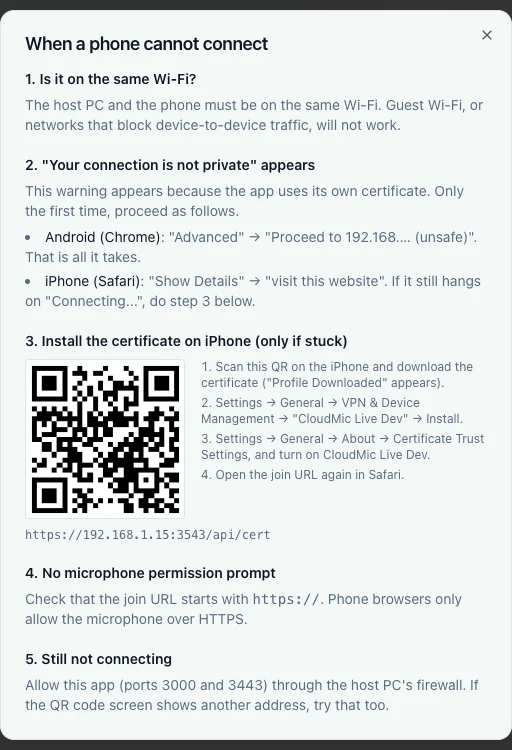
On iPhone, the page sometimes stays on “Connecting…” even after you proceed. If that happens, install the certificate from the QR code under the “?” (When a phone cannot connect) on the PC.
- Scan that QR code on the iPhone and download the certificate (“Profile Downloaded” appears)
- Settings → General → VPN & Device Management → “CloudMic Live Dev” → Install
- Settings → General → About → Certificate Trust Settings, and turn on “CloudMic Live Dev”
- Open the join URL again in Safari
If it won't connect
- Same Wi‑Fi? Check that the phone isn't still on mobile data (4G/5G) or on a guest network.
- No microphone prompt: check that the join URL starts with
https://. Phone browsers won't allow the microphone without https. - Still not connecting: allow this app (ports 3000 and 3443) through the PC's firewall. If the QR screen shows an alternative address, try that too.
If you just want a mic for your own PC
CloudMic Live is built for a room full of people whose voices play from a PC through speakers. If all you want is to use your phone instead of your PC's microphone in your own online calls, a wired headset may be simpler.
If you want voices in the room to reach Teams or Zoom as well, you can do that with a virtual audio cable. See Hybrid Q&A with Teams or Zoom.
Common questions
Does it work in a venue without internet?
Yes. All it needs is the PC and the phones on the same Wi‑Fi; no internet connection is required. Where there is no Wi‑Fi at all, phones can connect to the PC's Mobile hotspot.
Is it safe to proceed past the warning?
Browsers only allow the microphone over an encrypted (https) connection, so the PC uses a certificate it creates itself. Because it was not issued by a public authority, the browser warns you. The connection runs only between the PC and the phone on your local Wi‑Fi and never goes through an outside server.
Is it the same as a wired microphone?
Not quite. Because audio travels over Wi‑Fi, voices can arrive slightly later than with a wired mic, and a congested Wi‑Fi network can cause dropouts. It suits people in the room taking turns to speak briefly, such as Q&A and discussion. For a speaker who talks for an hour, a dedicated microphone is the safer choice.
What does it cost?
Up to 5 participants are free. For bigger groups: Event Pass US$4.99 (24 hours), or Monthly US$9.99 / Yearly US$69.99. Participants are always free.
Use cases: Town halls & community meetings Training & seminars Quiz nights & parties
More guides: Q&A without passing the mic Hybrid Q&A with Teams or Zoom