“Any questions? Please raise your hand.” A hand goes up, and someone hurries over with the microphone — down the aisle, past bags and knees. The room waits in silence until it arrives, and when the question is done, the mic has to make its way back again.
Each hand-off only takes a moment, but when several people have questions, those moments add up and eat into Q&A. Does any of this sound familiar?
- You need a person whose only job is to carry the mic around
- Everyone sits in silence while the mic travels
- There is only one mic, so the next person has to wait
- People don't ask, because raising a hand and taking a mic in front of everyone feels like too much
The idea: stop passing one mic, and give everyone their own
Almost everyone in the room already has a smartphone. If each phone can be a microphone, nothing needs to be carried around. The only thing left to decide is who speaks next, and the host can do that by approving people on a PC.
This guide uses CloudMic Live by 845.Lab. Attendees just scan a QR code — there is nothing to install. Their voice travels over the same Wi‑Fi to the host's PC and plays from the speakers connected to it.
What you need
- One PC for the host: Windows 10 / 11, with CloudMic Live installed free from Microsoft Store.
- The same Wi‑Fi: the PC and attendees' phones on the same Wi‑Fi. No internet connection is needed.
- Speakers: the PC's own speakers, or the room's sound system connected to the PC.
- Nice to have: a projector or large display to show the join QR code.
Steps on the day
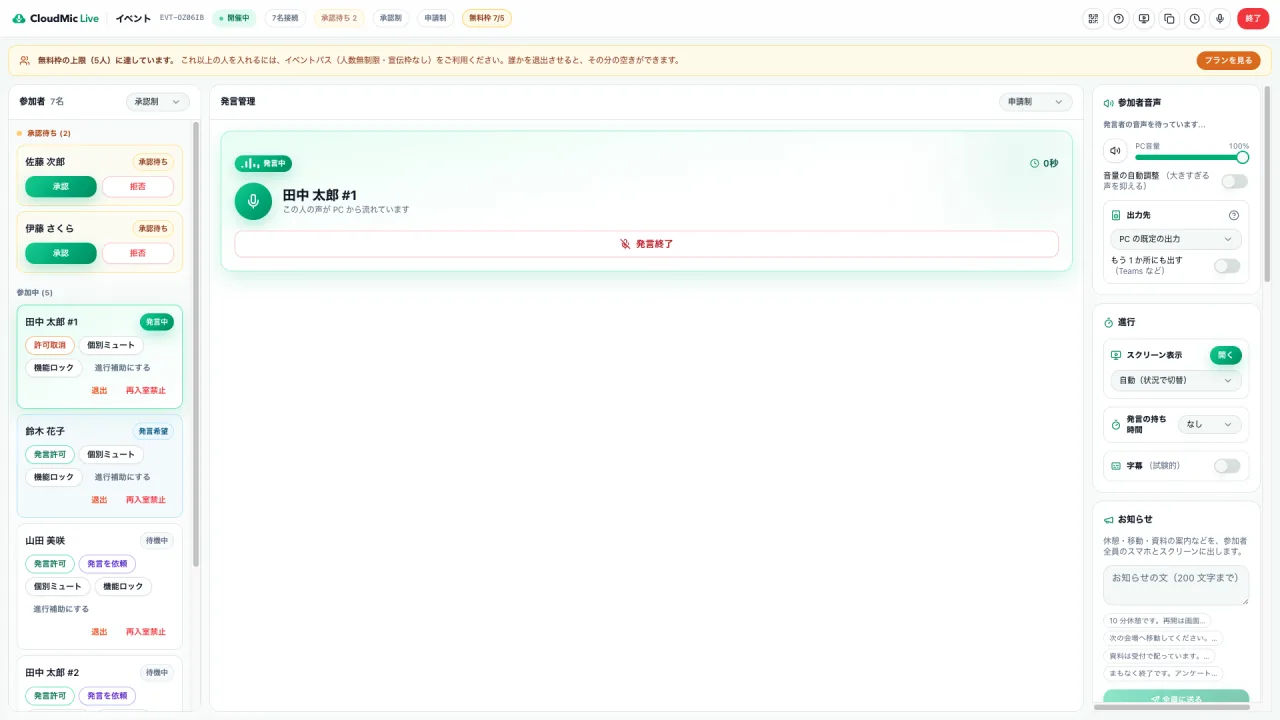
- Before the session, create an event on the PCLaunch CloudMic Live and create an event. Set the speaking mode to request and approve (people raise a hand on their phone and the host approves them).
- At the start, let people join by QR codeShow the join QR code on the screen or on a slide. Attendees scan it with their phone camera, open it in the browser and enter a name. The first time a phone connects, the browser may show a security warning (how to get past it).
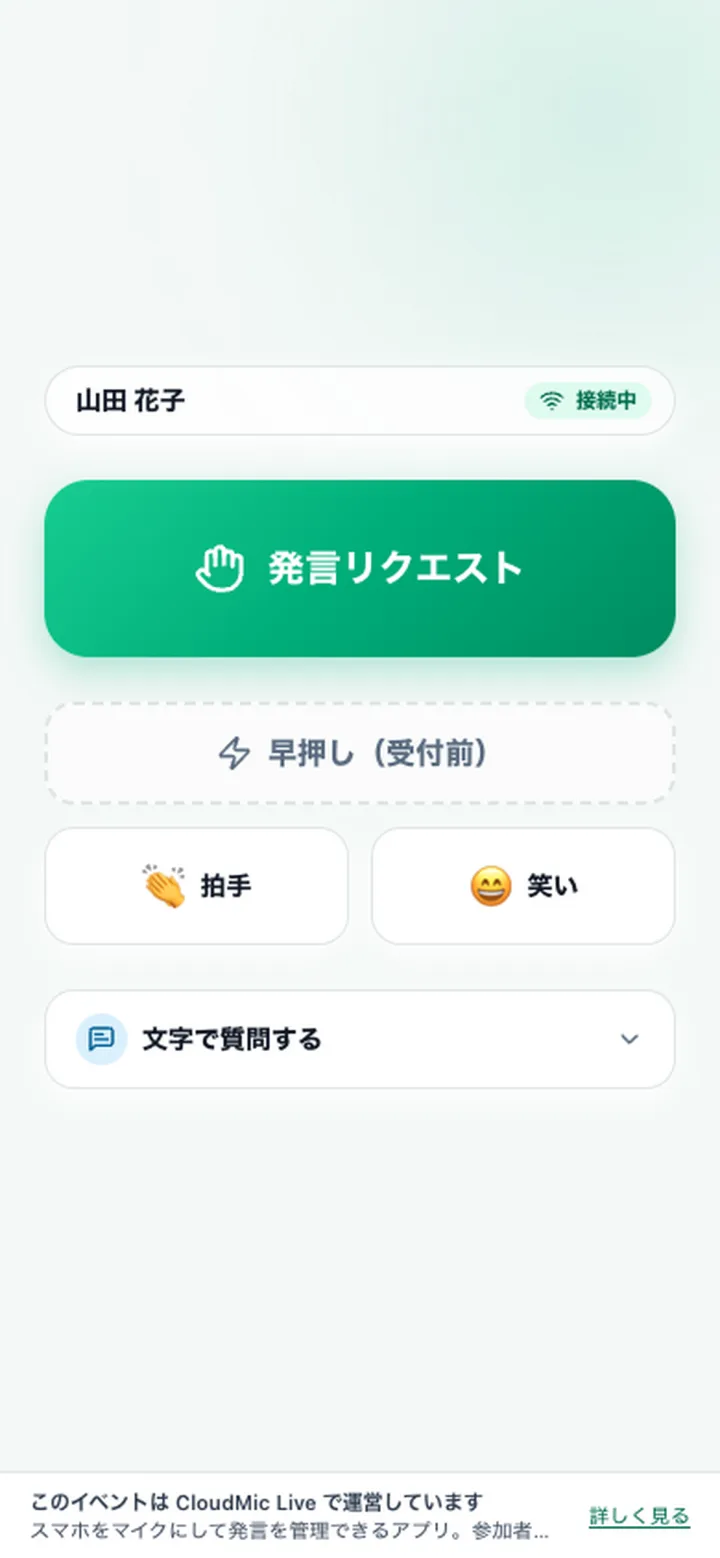
- When Q&A starts, say one sentence“If you have a question, tap ‘Request to speak’ on your phone.” Tapping replaces raising a hand.
- Approve people in turn on the PCEveryone who tapped appears on the PC screen. Click approve, and that person's phone becomes the microphone; their voice plays from the room speakers. People waiting see their place in line on their phone, such as “You are number 3 in line”.
- When they're done, move onThe speaker taps “Stop speaking” on their phone, or the host ends it from the PC. Then approve the next person.
Tips for a smooth Q&A
- Set a speaking time limit: with a time limit, the time remaining appears on the screen, which keeps any one question from running too long.
- A question box for people who'd rather not speak up: questions can be sent in writing, anonymously if they like, and are sorted by likes so you can answer the questions most people share. See the classroom page for how this works in class.
- Want to hear from someone in particular? Ask them to speak from the PC, or pick one participant at random.
- Watch out for feedback: holding a phone too close to the room speakers can cause feedback. The app shows how loud each voice is and warns you when feedback is likely.
- Test beforehand: the app's Venue check measures in about 10 seconds how many people can connect reliably with that PC and Wi‑Fi.
Where it doesn't fit
Better to say this up front.
- Large halls with around 1,000 people: it is designed for meeting rooms, classrooms and community halls. A home Wi‑Fi router or the PC's hotspot can only handle so many people reliably.
- Venues where attendees can't join the same Wi‑Fi: there is no way to join remotely over the internet. If the venue's Wi‑Fi blocks devices from reaching each other, phones can connect to the PC's Mobile hotspot instead.
Common questions
Do attendees need to install an app?
No. They open the QR code in Safari on iPhone or Chrome on Android. No account is needed, and participants are always free.
How many people can join?
Up to 5 participants are free. For bigger groups, choose an Event Pass (US$4.99, 24 hours) or Monthly US$9.99 / Yearly US$69.99. How many people connect reliably depends on your PC and Wi‑Fi, so measure it before the session with the app's Venue check.
Is anyone's voice sent anywhere?
No. Voices reach the PC over the same Wi‑Fi and are played on the spot. Only when a Monthly or Yearly host uses the recording feature is audio saved, and only on the host's PC; participants' screens then show “Recording”.
Can people joining online hear the questions asked in the room?
Yes. You can play in-room questioners on the room speakers and send them to Teams or Zoom at the same time. See Hybrid Q&A with Teams or Zoom for the steps.
Use cases: Training & seminars Town halls & community meetings Classrooms
More guides: Use your phone as a wireless mic Hybrid Q&A with Teams or Zoom