Someone in the room asks a question. In the meeting chat, a remote attendee types, “Sorry, we couldn't hear the question in the room.” The host repeats the question. If you've run a session in a room and on Teams or Zoom at the same time, you have probably seen this.
- Remote attendees can't hear people asking questions in the room
- The meeting mic sits in front of the presenter and doesn't pick up the audience
- Joining the meeting from several laptops in the same room causes feedback
- The host repeats every question, and it takes time
Several devices with open microphones in one room cause feedback in Teams or Zoom, so a room usually ends up with just one meeting microphone. To get the audience's voices to remote attendees, you need another way to carry that audio into the meeting app.
How it works: send room voices to two places
With CloudMic Live, phones in the room become microphones and their audio reaches the host's PC. From there, the PC plays voices on the room speakers and sends them to the meeting app at the same time. The meeting app receives the audio through a free “virtual audio cable” (the operating system doesn't let CloudMic Live act as a microphone for the meeting app directly).
In the roomTalk into a phone → host's PC → room speakers
OnlineHost's PC → virtual audio cable → Teams or Zoom microphone → remote attendees
What you need
- One host PC: Windows 10 / 11, running both CloudMic Live and the meeting app (Teams, Zoom or similar).
- A virtual audio cable: VB-CABLE on Windows (free from vb-audio.com/Cable). On Mac, BlackHole (2ch).
- The same Wi‑Fi: in-room attendees' phones and the PC on the same Wi‑Fi.
- Room speakers: connected to the PC so people in the room can hear.
Steps
- Install the virtual audio cable (once)After installing VB-CABLE, restart the PC.
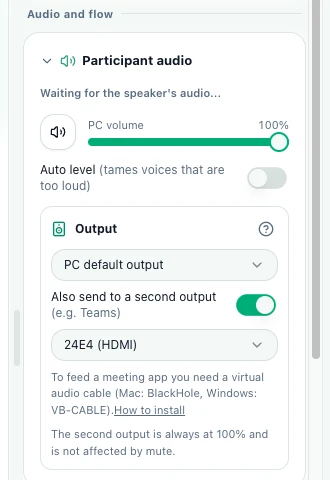
- In CloudMic Live, set the main output to the room speakersCreate an event and open “Output”, inside “Participant audio” on the right side of the screen. Set the main output to the room speakers (or the PC default output).
- Turn on “Also send to a second output” and choose CABLE InputIf device names are missing, press “Show device names” (asks for microphone access once).
- Set the meeting app's microphone to the virtual cableIn Teams, go to Settings → Devices and set the microphone to “CABLE Output”. In Zoom, go to Settings → Audio and set the microphone to “CABLE Output” as well.
- Leave the meeting app's speaker on the room speakersThat way the room can hear remote attendees. If you set the speaker to the virtual cable, nobody in the room will hear them.
- Test once before the eventHave one person speak from a phone in the room, join the same meeting from another device, and check that you can hear them online.
Things to watch out for
- The presenter's and host's voice: once the meeting app's microphone is the virtual cable, your PC's own microphone no longer reaches the meeting. The simplest fix is for the presenter or host to join from their own phone as a participant and speak that way.
- Feedback: phones close to the room speakers can cause feedback. To silence the room for a moment, use mute in CloudMic Live (the meeting app keeps receiving audio).
- Questions from remote attendees: online attendees can't join CloudMic Live. They ask as usual, using the meeting app's microphone or chat.
- The meeting app's own processing: features such as noise suppression in the meeting app can change how voices sound. Test before the event.
Common questions
Does the virtual audio cable cost anything?
VB-CABLE for Windows and BlackHole for Mac are both available for free. Install them following their publishers' instructions.
Can online attendees speak through their phones too?
No. Only people on the same Wi‑Fi as the host's PC can join CloudMic Live. Online attendees speak through Teams or Zoom as usual, and their voices play in the room from the meeting app.
Does it work with Google Meet?
The idea is the same. Choose the virtual cable (CABLE Output on Windows) as the meeting app's microphone and the room's voices will come through.
Are voices from the room sent anywhere?
CloudMic Live itself never sends voices to the developer's servers or anywhere else. In a hybrid session, though, the audio you pass to the meeting app is delivered to online attendees by that meeting app (Teams or Zoom).
Use cases: Training & seminars Town halls & community meetings
More guides: Q&A without passing the mic Use your phone as a wireless mic