

Copy here.
Paste there.
Share text, photos, files and your clipboard between your PC and phone on the same Wi‑Fi. Nothing goes through the internet — it stays between your own devices.
Free · No account · Mac version coming soon
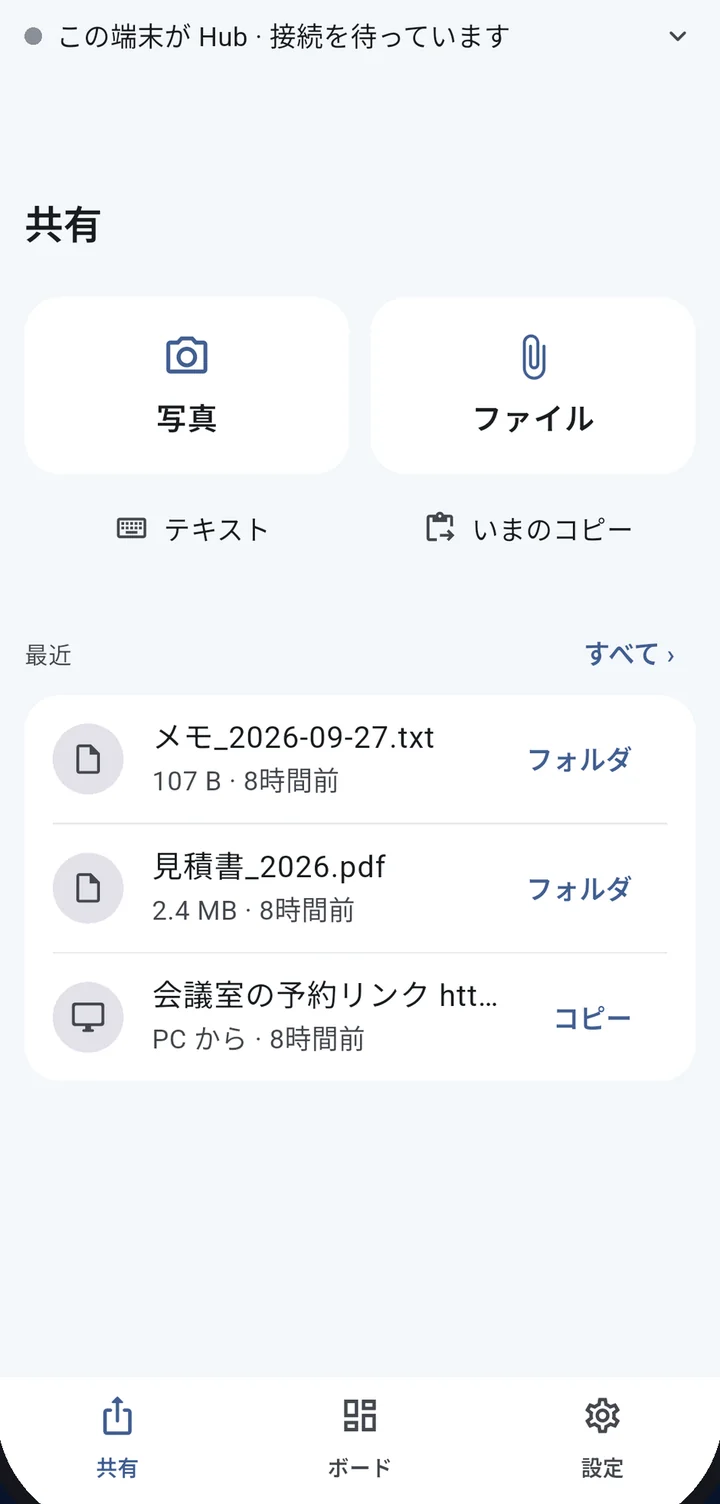
Fast, quiet,
and local.
AirBoard is built as a tool you open many times a day: no extra steps, no data leaving your network, and connections you can see at a glance.
Only on your LAN
What you share never goes through a cloud server. Devices on the same network talk to each other directly.
Almost no setup
No account needed. Search on Wi‑Fi or scan a QR code, and you're connected.
Clear with three or more
Use your PC as a Hub and connect several devices at once. A map shows who is connected to whom.
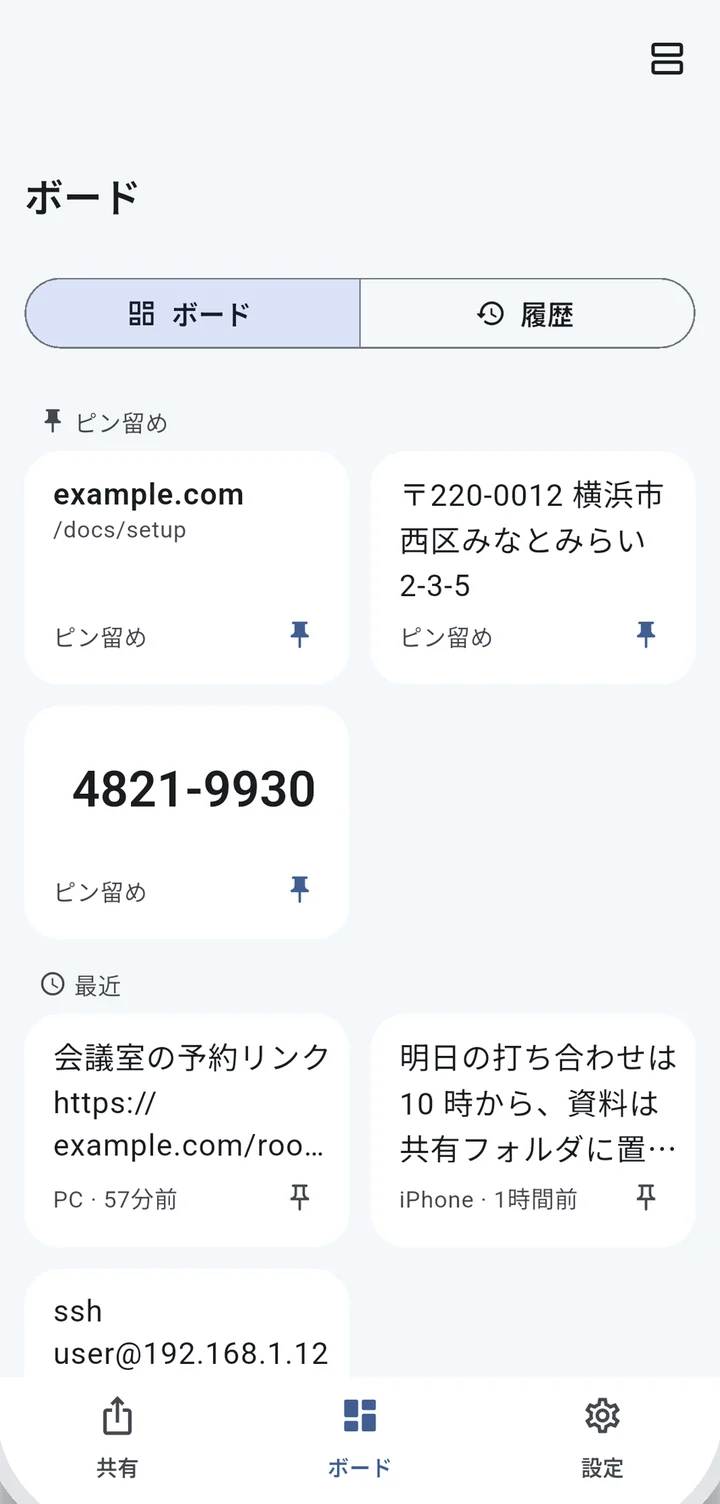
Pin what you
use most.
Addresses, phone numbers, meeting links. Pin the things you send again and again, and copy them with one tap. Numbers are shown large, and links open with a tap.
- Keep pins the same across devices (turn on in Settings)
- Reuse recent shares straight from the Board
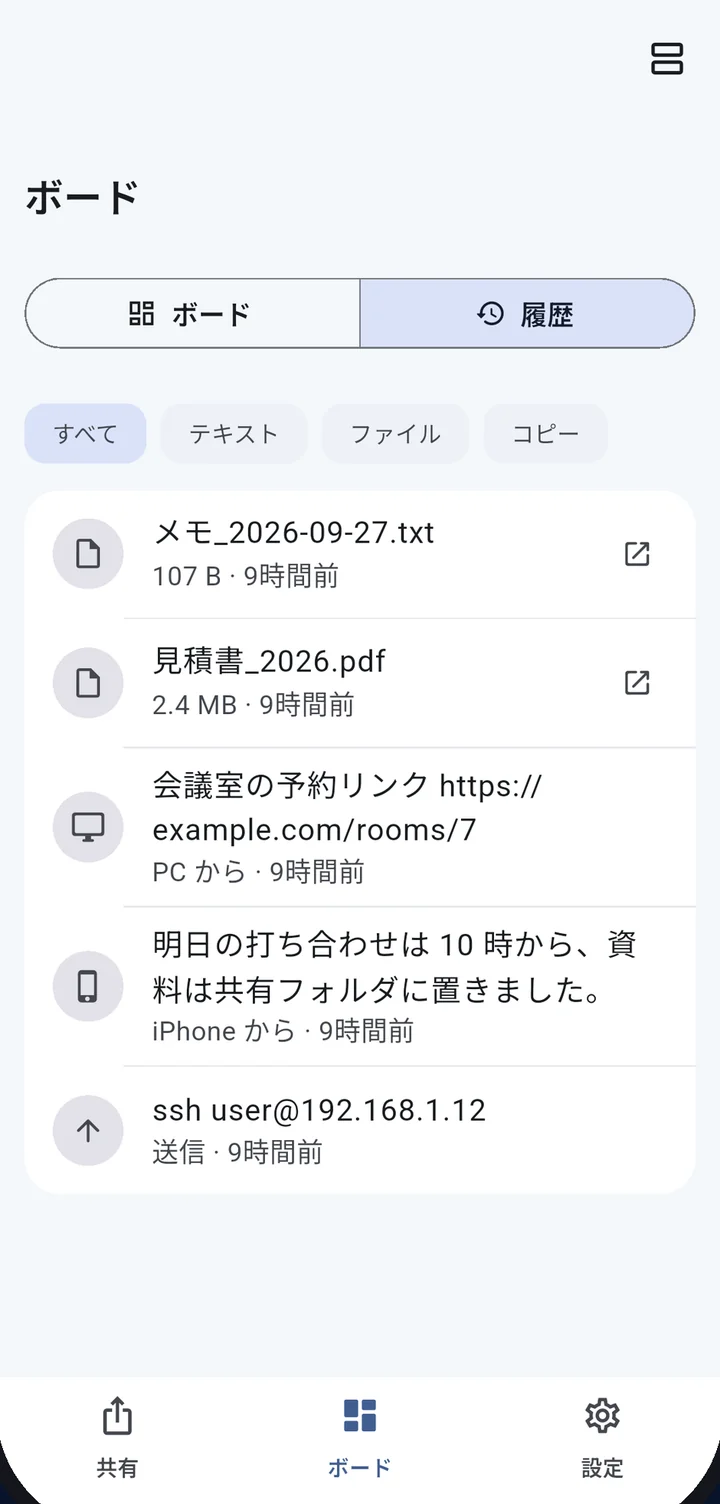
Sent, received, copied — all in your history.
Besides the text and files you exchange, what you copy on this device is kept in your history too. Filter by type and see which device sent each item, so finding it later is easy.
- Keeps what you copy on this device (stored on this device only, 25–200 items)
- Filter by text, file or copy
- See which device sent it
Save files
where you want.
Choose where received photos and files are saved. On Windows, Mac and Android, pick any folder; on iPhone, they are always in the Files app.
- Change the folder any time in Settings
- “Open location” right after a file arrives
- On Android, Downloads/AirBoard is one tap away
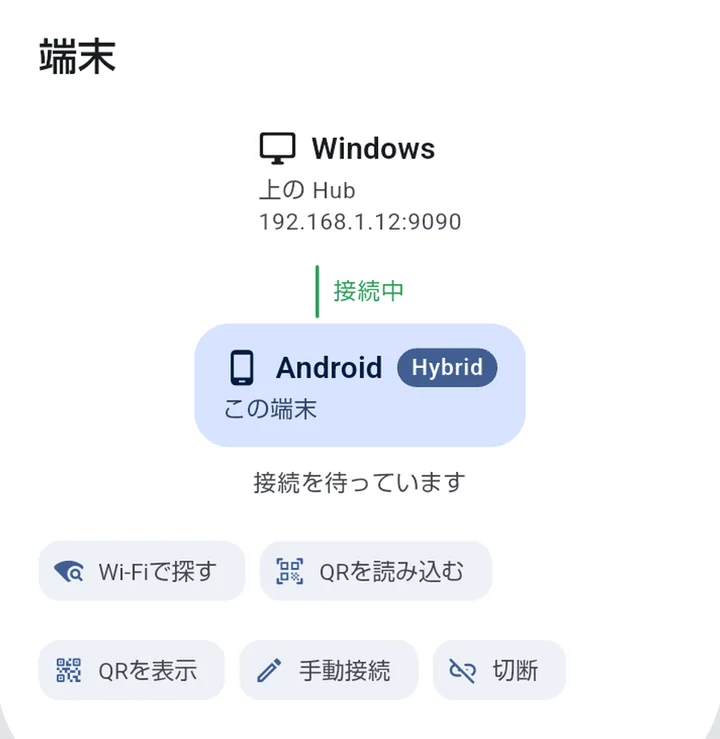
See who is
connected.
Which device is connected, and to whom? A map centred on the Hub shows it at a glance — including devices connected behind another one, which you can send to directly.
- Find on Wi‑Fi, connect by QR, or connect manually
- Approve new devices before they connect
- Pick a recipient and send only to that device
On your PC,
a workbench.
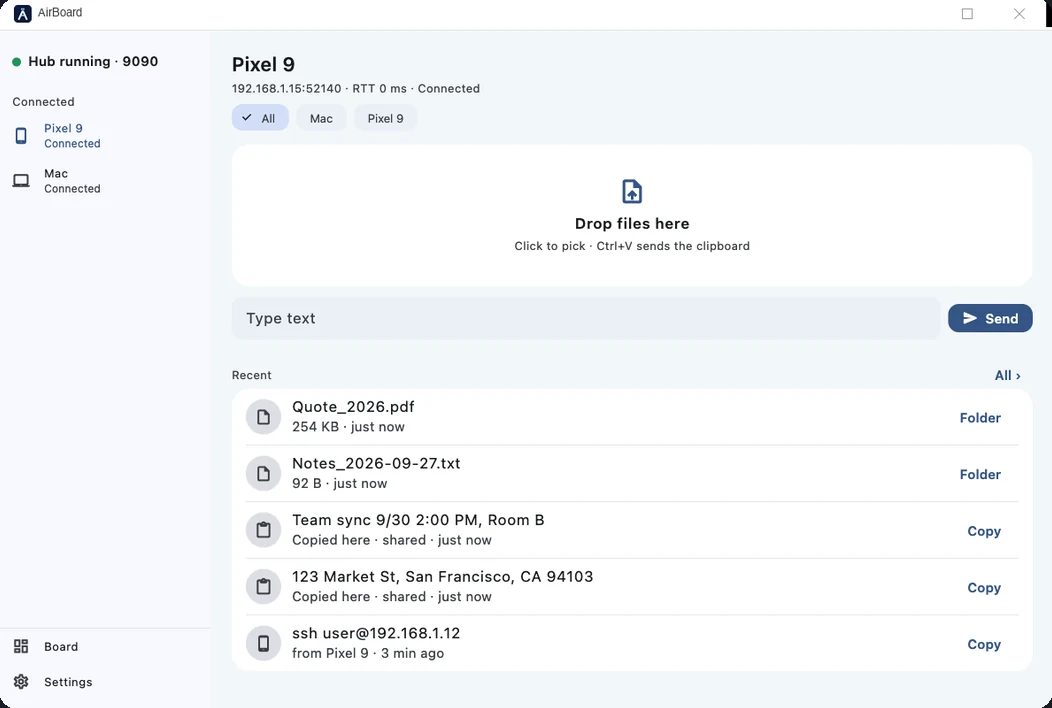
Devices on the left, a drop zone on the right. The Windows app is built for keyboard and mouse.
Drop a file on the window to send it
Send what's on your clipboard
Close to the tray. It reopens where, and as large as, you left it
Three steps
to start.
Same Wi‑Fi
Connect your PC and phone to the same Wi‑Fi (or LAN).
Open and connect
Search on Wi‑Fi or scan a QR code. A new device connects once you approve it.
Send
Pick a photo, file or text. On a PC, just drop it or press Ctrl+V.
On the devices
you already use.
Windows
Microsoft Store iOS · iPadOSiPhone & iPad
App Store AndroidAndroid
Google PlayMac
Coming soonAirBoard is free. The phone and tablet apps show ads, which you can remove with a one-time in-app purchase (Remove ads). The Windows and Mac apps have no ads.
How-to guides
Step-by-step guides for the most common tasks.
Copy and paste between iPhone and Windows
Read iPhone → PCSend iPhone photos to a PC without a cable
Read Android × WindowsShare the clipboard between Android and Windows
Read Phone × PCMove notes without messaging yourself
Read Can't connect?Office Wi‑Fi blocking devices? Use a hotspot
ReadWhat you share stays between your devices.
Text and files handled by AirBoard never pass through a server on the internet. Ads in the mobile apps are served by Google AdMob, but what you share is never used for ads and never sent to Google.
Read the privacy policyQuestions
Is it free?
Does it only work on the same Wi‑Fi?
How many devices can I connect?
Will it work on office or school Wi‑Fi?
How do I contact you?

Copy freely, starting today.
Free, no sign-up. Just install it on your devices.